
10 VS Code Extensions Every Laravel Developer Needs
I still remember the moment I realized my VS Code setup was actively working against me. I was three hours deep debugging a Blade template, bouncing between my browser, terminal, and a growing stack of error logs. My colleague walked by, glanced at my screen, and asked why I was doing everything the hard way. Ten minutes later, after installing a couple of extensions I'd never heard of, that same debugging session took me fifteen minutes.
That experience taught me something important: your editor is either an ally or an obstacle. For Laravel developers, the right extensions can mean the difference between fighting your tools and actually shipping features.
This isn't a random list I pulled from a "top extensions" search. These are the ones I've installed on every machine I've touched for the past four years. Some are obvious. Others took me embarrassingly long to discover.
What You'll Learn
Which extensions genuinely speed up Laravel development (not just look pretty)
How to configure them for real-world Laravel projects
Common configuration mistakes that waste time instead of saving it
When to skip an extension entirely
1. Laravel Blade Snippets
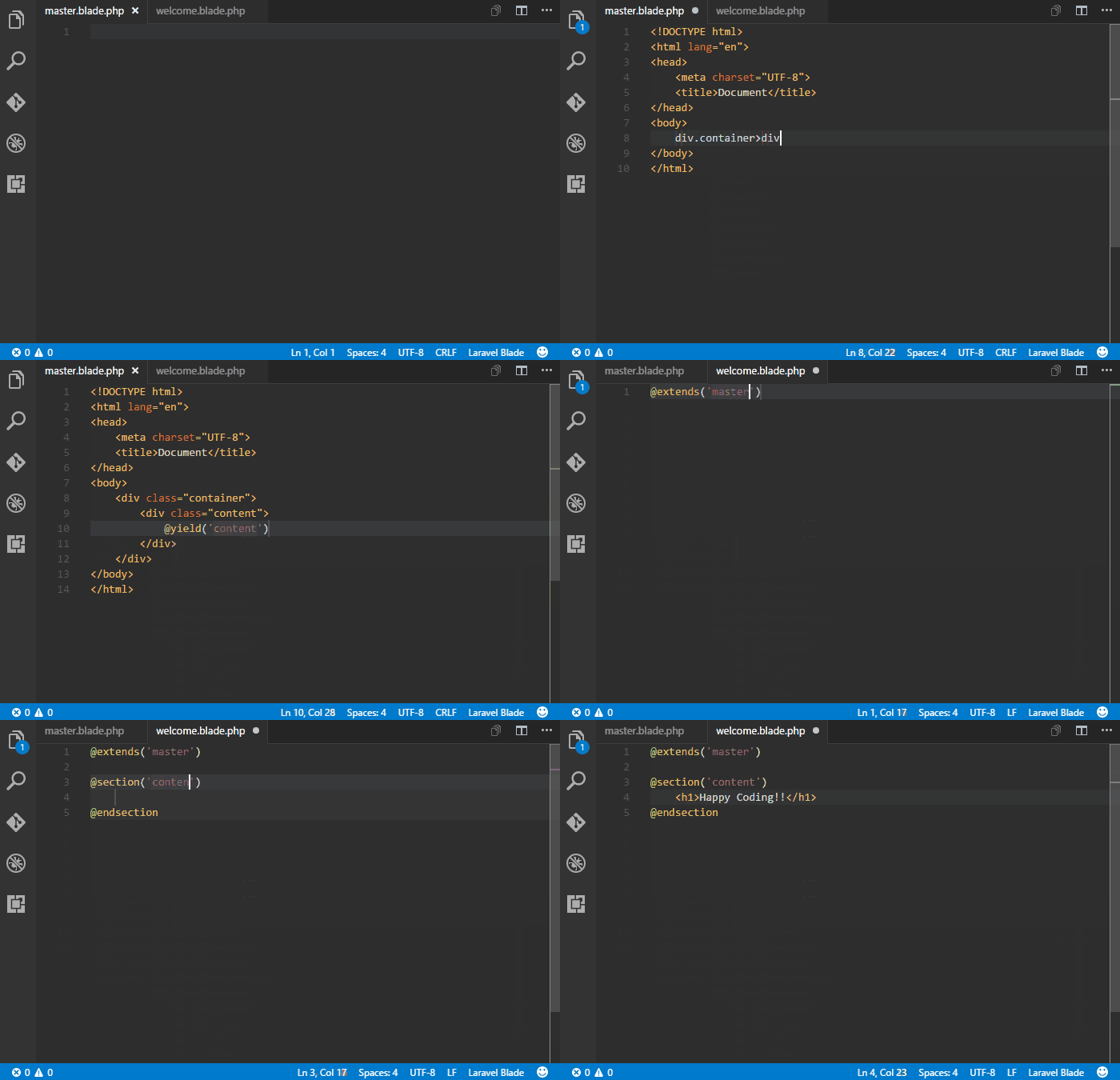
Blade templates are where Laravel's elegance really shines. They're also where I used to waste stupid amounts of time typing out @section, @extends, and @foreach directives manually.
Laravel Blade Snippets fixes that. Type bforeach and you get a complete foreach block. Type bsection and you've got the full section syntax ready to fill in. It sounds minor until you're writing your fiftieth template of the week.
Why it matters: Blade has a lot of directives. Even experienced developers forget the exact syntax for less common ones like @unless or @pushonce. This extension puts them all at your fingertips.
2. PHP Intelephense
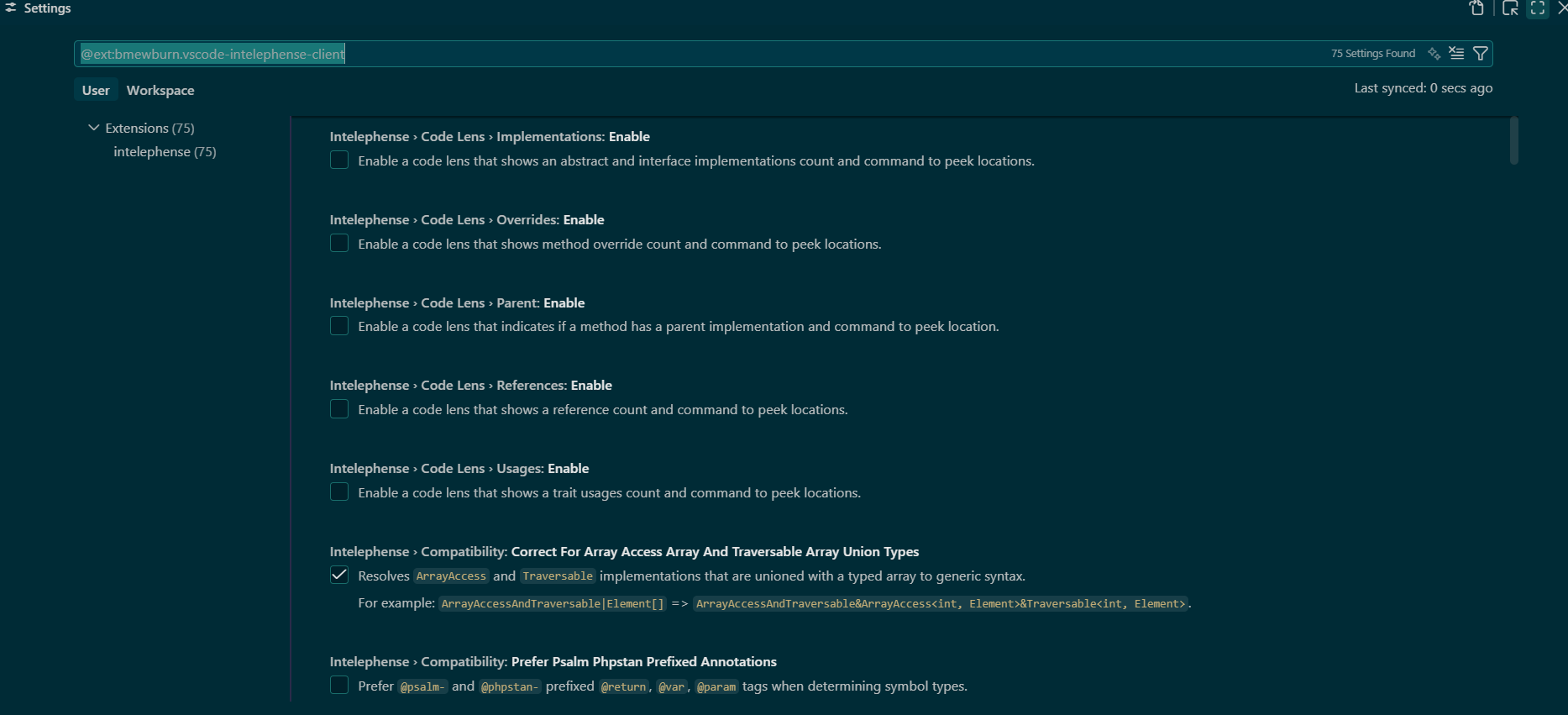
This one isn't Laravel-specific, but it's non-negotiable for any PHP project. Intelephense gives you intelligent code completion, go-to-definition, find references, and real-time error checking.
I resisted switching from the older PHP Intellisense extension for months. Big mistake. Intelephense is faster, more accurate, and handles modern PHP features like typed properties and union types without choking.
Configuration tip: Add this to your settings.json to exclude vendor folders from indexing:
json
{
  "intelephense.files.exclude": [
    "**/vendor/**",
    "**/node_modules/**",
    "**/storage/**"
  ]
}
This keeps things snappy on larger projects. Nothing kills productivity like waiting for your editor to index 40,000 vendor files.
3. Laravel Extra Intellisense
Here's where things get interesting. PHP Intelephense doesn't understand Laravel's magic. It doesn't know what route('users.show') resolves to, or what config keys exist in your project.
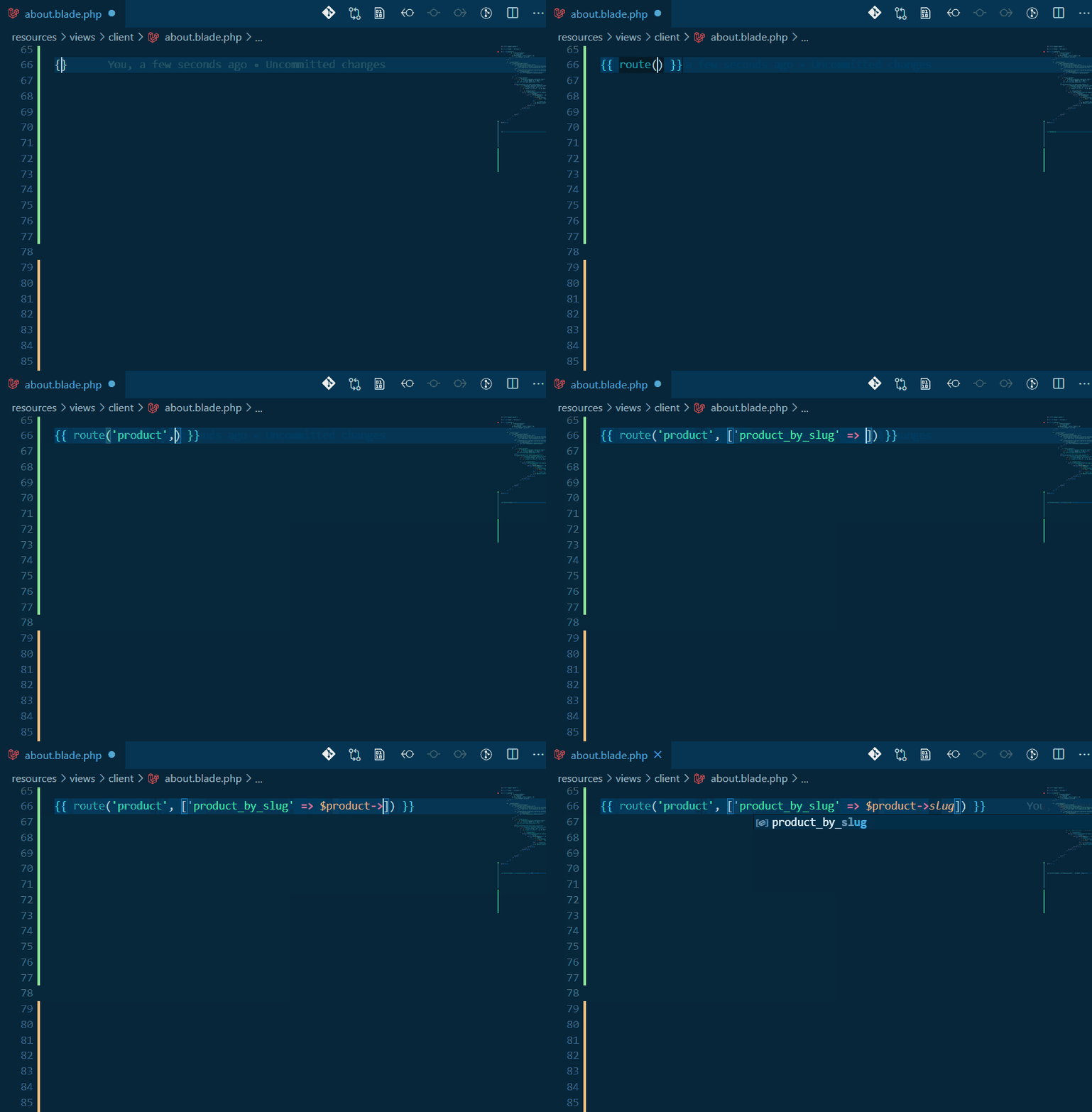
Laravel Extra Intellisense bridges that gap. It reads your actual Laravel project and provides autocomplete for:
Route names in
route()andredirect()callsConfig keys in
config()callsView names in
view()callsTranslation keys
Validation rule names
The first time I saw route name autocomplete working, I actually said "finally" out loud. No more grepping through route files to remember if it's users.index or user.index.
Note to self: This extension runs a PHP process in the background. On massive projects, you might notice a slight performance hit. Worth it for the convenience, but keep it in mind if your machine is struggling.
4. DotENV
Environment files are critical and criminally easy to mess up. One missing quote, one wrong variable name, and you're chasing phantom bugs for an hour.
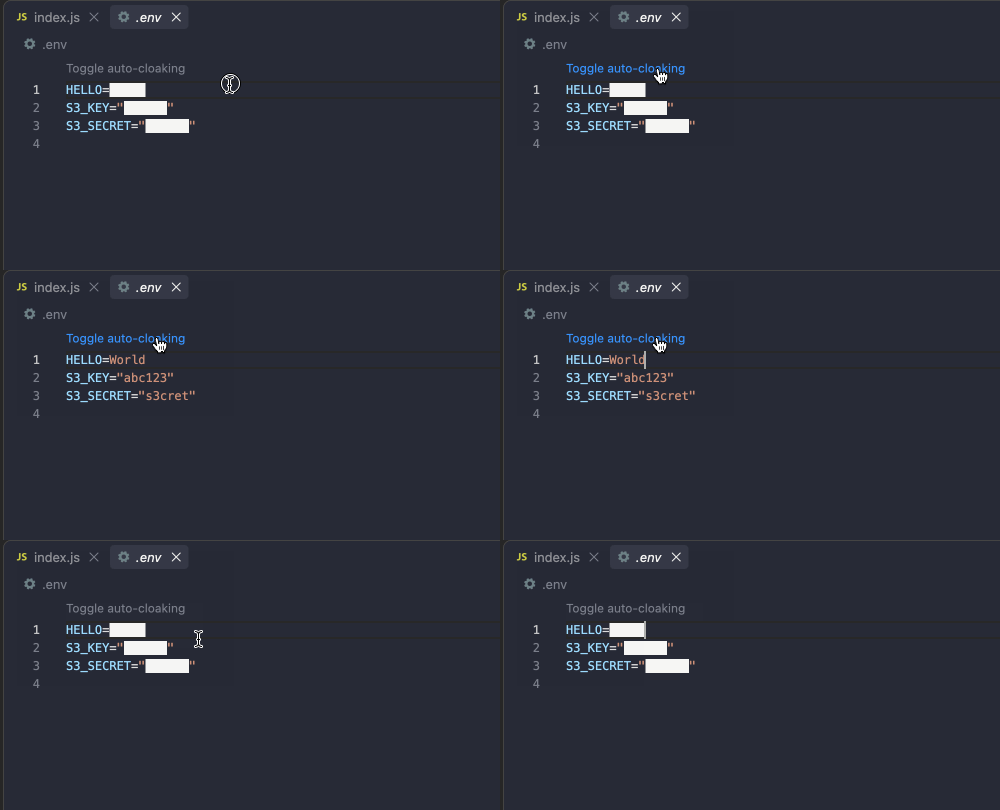
DotENV adds syntax highlighting for .env files. That's it. That's the whole feature. And somehow, it's saved me from more typos than I'd like to admit.
My mild disagreement with common wisdom: Some developers say you should never edit .env files directly in your editor—always use the terminal. I think that's overly cautious. With proper syntax highlighting, editing .env in VS Code is perfectly fine. Just don't commit the file. Ever.
env
APP_NAME="My Laravel App"
APP_ENV=local
APP_DEBUG=true
APP_URL=http://localhost

DB_CONNECTION=mysql
DB_HOST=127.0.0.1
DB_PORT=3306
DB_DATABASE=laravel_project
DB_USERNAME=root
DB_PASSWORD=
See how the highlighting makes the structure obvious? Without it, you're squinting at monochrome text hoping you didn't miss a closing quote.
5. GitLens
You're using version control, right? If you're not, close this article and go learn Git. I'll wait.
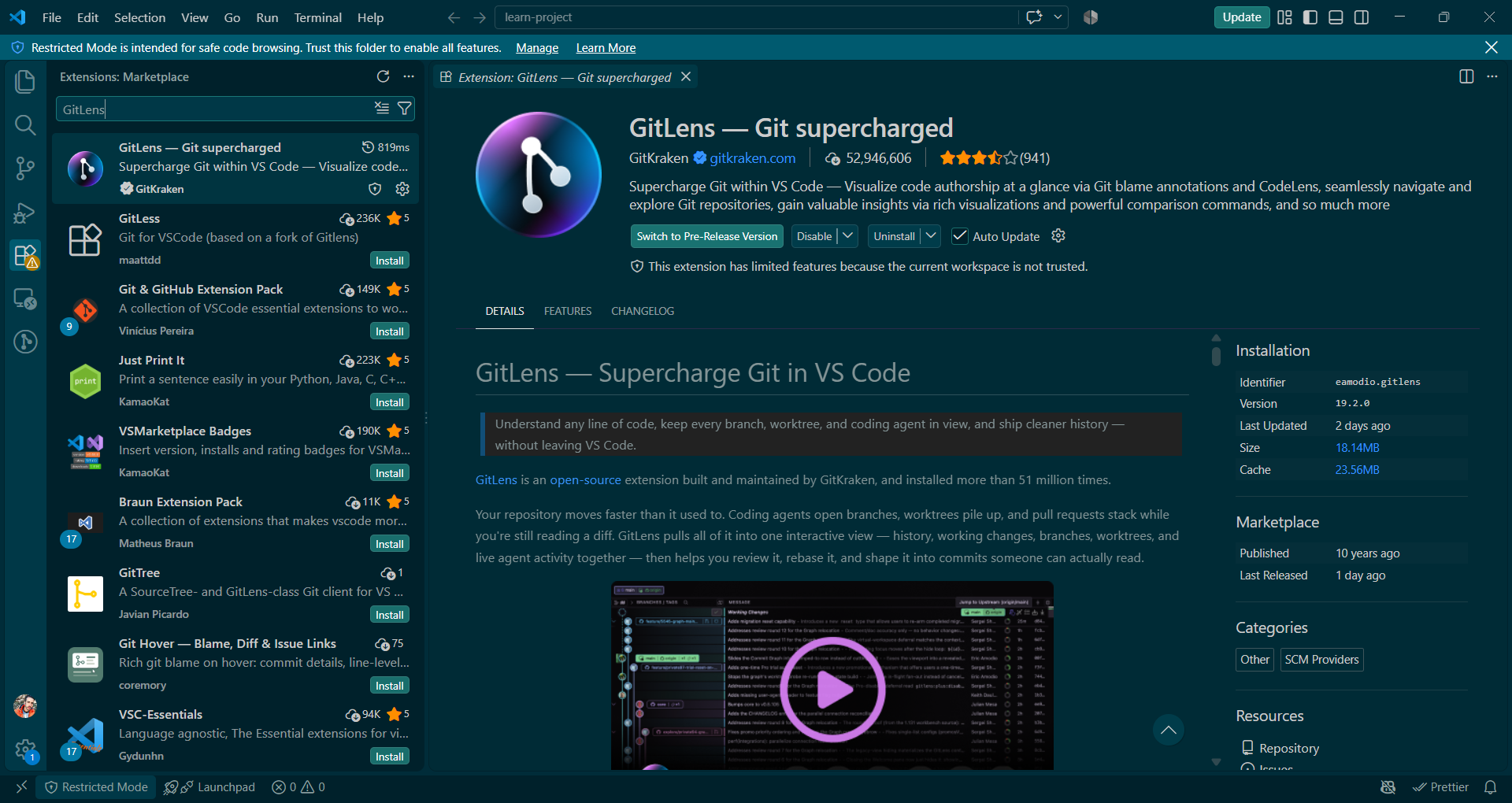
For those still here: GitLens transforms VS Code's built-in Git support into something genuinely powerful. It shows you who wrote each line of code, when they wrote it, and why (via commit messages). Inline blame annotations, commit history, branch comparisons—it's all there.
Why Laravel developers specifically need this: Laravel projects tend to have a lot of files doing similar things. Migrations, seeders, controllers, form requests. When something breaks, GitLens helps you answer "what changed?" without leaving your editor.
The hover-over-commit feature has saved me from asking "who wrote this?" in Slack more times than I can count. Which is good, because nobody likes being that person.
6. Better Comments
This is a small quality-of-life extension that punches above its weight. Better Comments colorizes your comments based on tags like TODO, FIXME, HACK, and NOTE.
Before this extension, my comments all looked the same. Now, a // TODO: Refactor this mess screams at me in bright orange, while // NOTE: This works, don't touch it stays calm and blue.
Real example from my codebase:
php
// TODO: Extract this to a service class
public function processOrder(Order $order)
{
    // HACK: Temporary fix for the tax calculation bug
    $tax = $order->subtotal * 0.08;

    // NOTE: This assumes USD, needs multi-currency support
    $total = $order->subtotal + $tax;

    // ! This will break if order has no items
    return $order->items->sum('price') + $tax;
}
The visual distinction makes it harder to ignore the things you've been meaning to fix for three sprints.
7. PHP Debug
Debugging with dd() and dump() is fine for quick checks. For anything more complex, you need a real debugger. PHP Debug integrates Xdebug with VS Code, giving you breakpoints, variable inspection, and step-through debugging.
Setting this up requires configuring Xdebug on your PHP installation, which can be fiddly. But once it works, you'll wonder how you ever lived without it.
Typical launch.json configuration:
json
{
    "version": "0.2.0",
    "configurations": [
        {
            "name": "Listen for Xdebug",
            "type": "php",
            "request": "launch",
            "port": 9003,
            "pathMappings": {
                "/var/www/html": "${workspaceFolder}"
            }
        }
    ]
}
That pathMappings setting is crucial if you're using Docker or a VM. Without it, breakpoints won't bind correctly and you'll spend an hour wondering why nothing works. Ask me how I know.
8. Docker
If you're running Laravel in Docker (and you probably should be), this extension is essential. It gives you a Docker panel in VS Code where you can manage containers, images, and volumes without switching to a terminal.
More importantly, it enables VS Code's Dev Containers feature. You can develop entirely inside a container, which means your local environment exactly matches production. No more "works on my machine" excuses.
I'll be honest: the initial setup takes time. But the consistency it provides across teams is worth the investment. Especially when you onboard a new developer and they're productive on day one instead of spending a week fighting environment issues.
9. Error Lens
This extension shows errors and warnings inline, right next to the problematic code. No more hovering over squiggly underlines or checking the Problems panel.
For Laravel development specifically, this is huge. PHP has enough quirks that catching issues immediately—before you even save the file—saves real time. Undefined variables, type mismatches, missing imports—Error Lens surfaces them all.
A small caveat: If you're working with a legacy codebase full of existing issues, Error Lens can feel overwhelming at first. You'll see red and yellow everywhere. Push through it. Fix the critical stuff, and the visual noise decreases over time.
10. Laravel Artisan
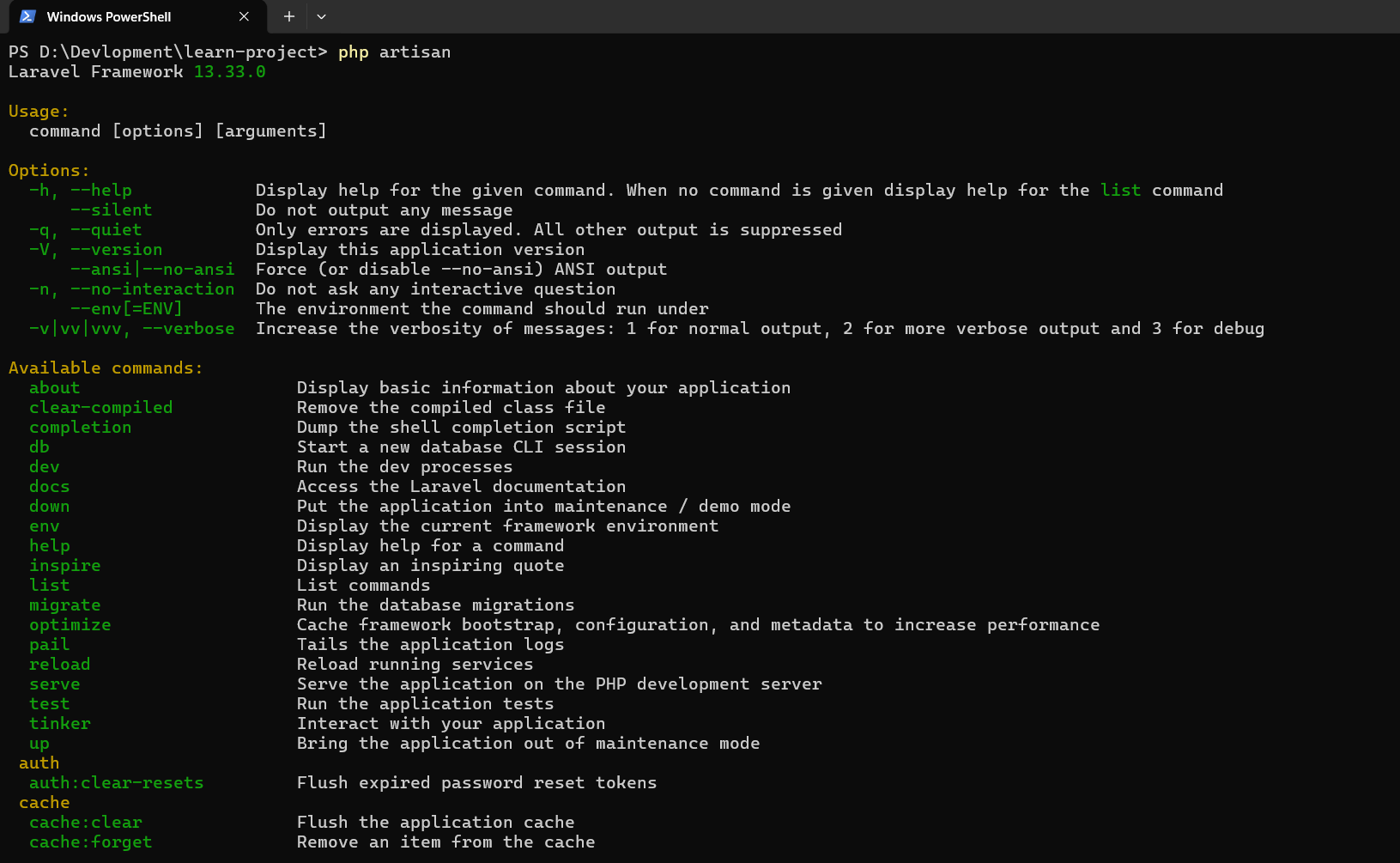
Finally, we have Laravel Artisan. This extension lets you run Artisan commands directly from VS Code's command palette. No terminal switching required.
Need to create a model with migration and controller? php artisan make:model Post -mc becomes a quick command palette action. Need to clear cache? Same deal.
Here's what I actually use it for most:
Running
php artisan make:commands without remembering all the flagsClearing caches when something weird happens (it happens)
Running migrations without leaving my editor
Quick
php artisan tinkersessions for testing snippets
Is it revolutionary? No. But small conveniences add up. And anything that keeps me in flow state longer is worth having.
Common Mistakes and Gotchas
Installing too many extensions. I've seen developers with 50+ extensions wondering why VS Code takes forever to start. Be selective. Each extension adds overhead, and some conflict with each other.
Ignoring workspace settings. Most of these extensions work best when configured per-project. Create a .vscode/settings.json in your Laravel project and commit it. Your teammates will thank you.
Not excluding vendor and node_modules. Extensions that index files will crawl through every dependency unless you tell them not to. Exclude these folders in your settings.
Forgetting to restart. Some extensions require a VS Code restart after installation. If something isn't working, try that before filing a bug report.
Skipping the PHP setup. Extensions like Intelephense and PHP Debug need a working PHP installation with proper configuration. If PHP isn't set up correctly on your system, these extensions won't help.
My Personal Takeaway
After years of tweaking my VS Code setup, I've learned that the best configuration is the one you actually understand. Installing extensions because someone's blog post said so—including this one—won't help unless you know why they're there and how they work.
Start with two or three from this list. Use them for a week. Learn their shortcuts and settings. Then add more.
The goal isn't to have the most impressive extension list. It's to spend less time fighting your tools and more time building things that matter. Laravel is a joy to work with when your environment supports you instead of getting in your way.
What's the one VS Code extension you can't live without? I'm always looking for new additions to my setup—drop a comment and let me know.
Suggested Tags/Categories
Laravel
VS Code
PHP Development
Developer Tools
Productivity
Web Development
Programming Tips
Suggested Internal Link Anchors
"Laravel development best practices"
"setting up Xdebug with PHP"
"Docker for PHP developers"
"essential Git commands"
"Blade templating guide"